
Every glossy magazine cover follows a formula so familiar you barely notice it consciously — a striking central portrait, bold masthead typography, a scattering of cover lines promising exclusive stories inside. It looks effortless, but there’s real craft behind why certain covers grab you off a newsstand, and others don’t. With an AI image generator, you can now build that exact editorial look yourself, without an actual magazine, photographer, or design team behind you.
Dreamina, running on its most advanced image generation model, Seedream 5.0 Pro, is particularly well-equipped for this kind of stylized, text-integrated design work. Whether you’re building a fun personal project or mocking up something for a client, here’s exactly how to nail that magazine aesthetic.

Anatomy of a magazine cover
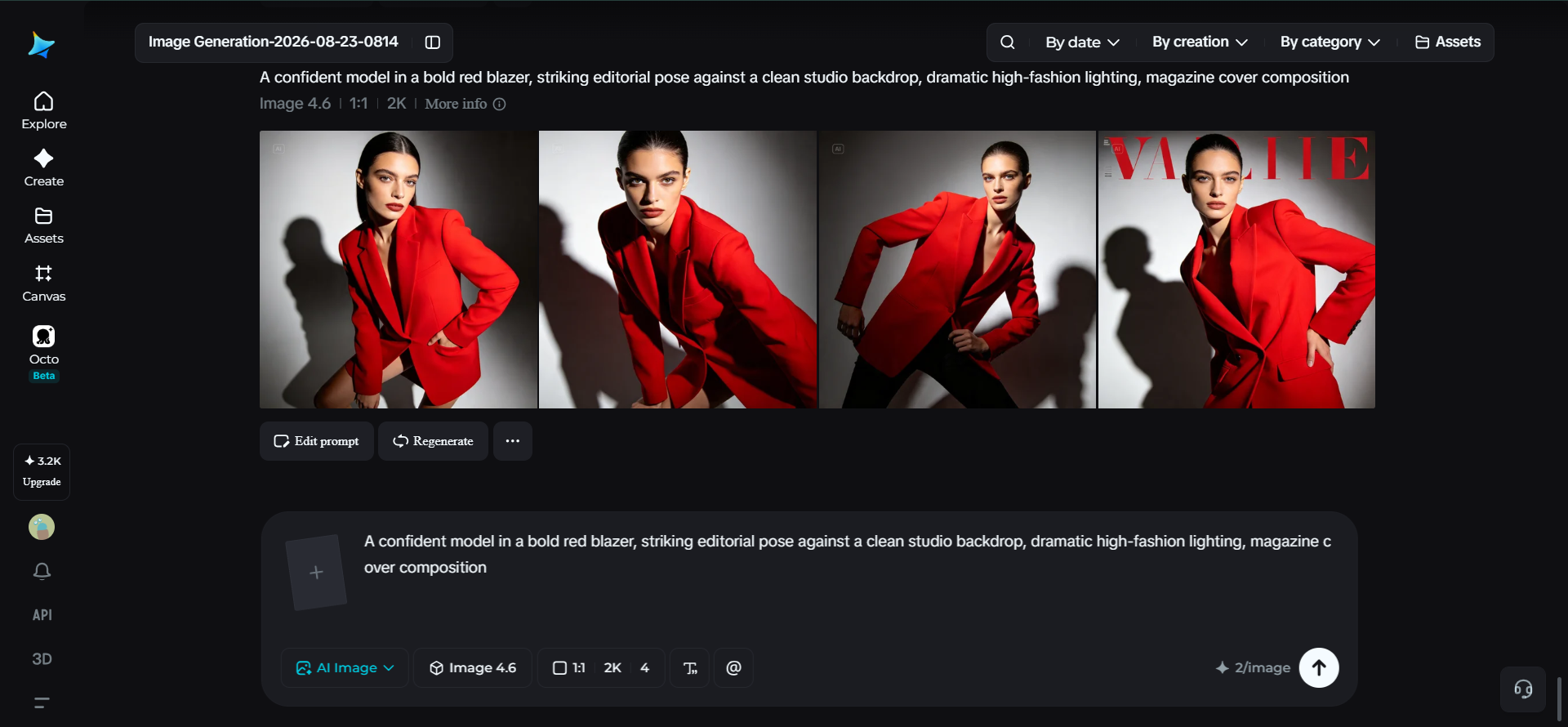
Before generating anything, it helps to break down what’s actually happening in a typical cover, since each piece serves a distinct purpose. The masthead, the magazine’s title, sits at the top and stays consistent across issues. The main image, usually a striking portrait, dominates the center and carries most of the visual weight.
Cover lines, the smaller text teasing articles, surround the edges without crowding the central image. Understanding this structure before prompting keeps your composition from feeling like a random photo with text slapped on top.
Why Seedream 5.0 Pro fits editorial design so well
A few of Seedream 5.0 Pro’s core strengths line up directly with what magazine-style covers demand. Its native text generation across 14 languages means a masthead or cover lines can eventually be rendered directly and legibly within the design.
The multi-layer visual control separates the subject, background, and text into independent components, making it simple to adjust typography or a background element without disturbing the central portrait.
Pinpoint precision editing, with point selection, lasso, sketch guidance, and regional controls, gives you the accuracy to fine-tune pose or expression details, and the 2K output ensures fine texture in clothing, skin, and lighting holds up under close inspection.
Your 3-step cover shoot with Dreamina
With that structure in mind, here’s the exact process for generating your cover image.
Step 1: Write a text prompt and/or add a reference image
Navigate to Dreamina and write a detailed text prompt describing a person dressed appropriately for your magazine’s theme or genre, positioned in a striking editorial pose. If you have a reference image capturing a similar magazine style you’re aiming for, upload it to guide the generation further.
A strong sample prompt might read: A confident woman model in a bold navy blue tailored blazer, striking editorial pose with direct eye contact, clean studio backdrop, dramatic high-fashion lighting, magazine cover composition.

Step 2: Adjust parameters and generate
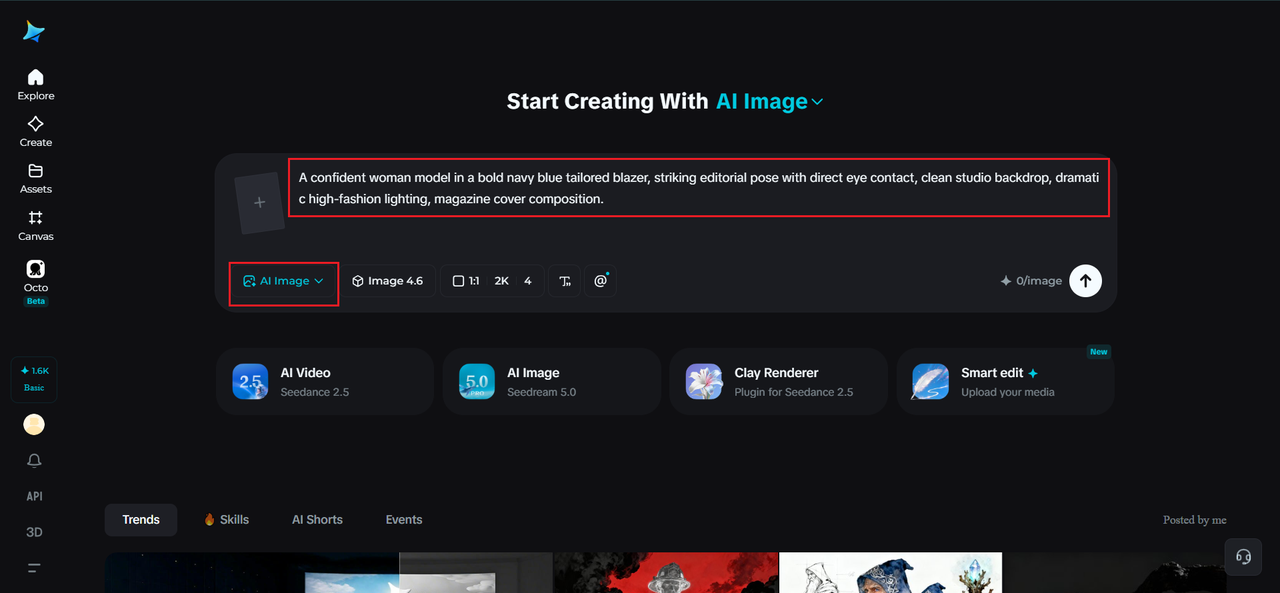
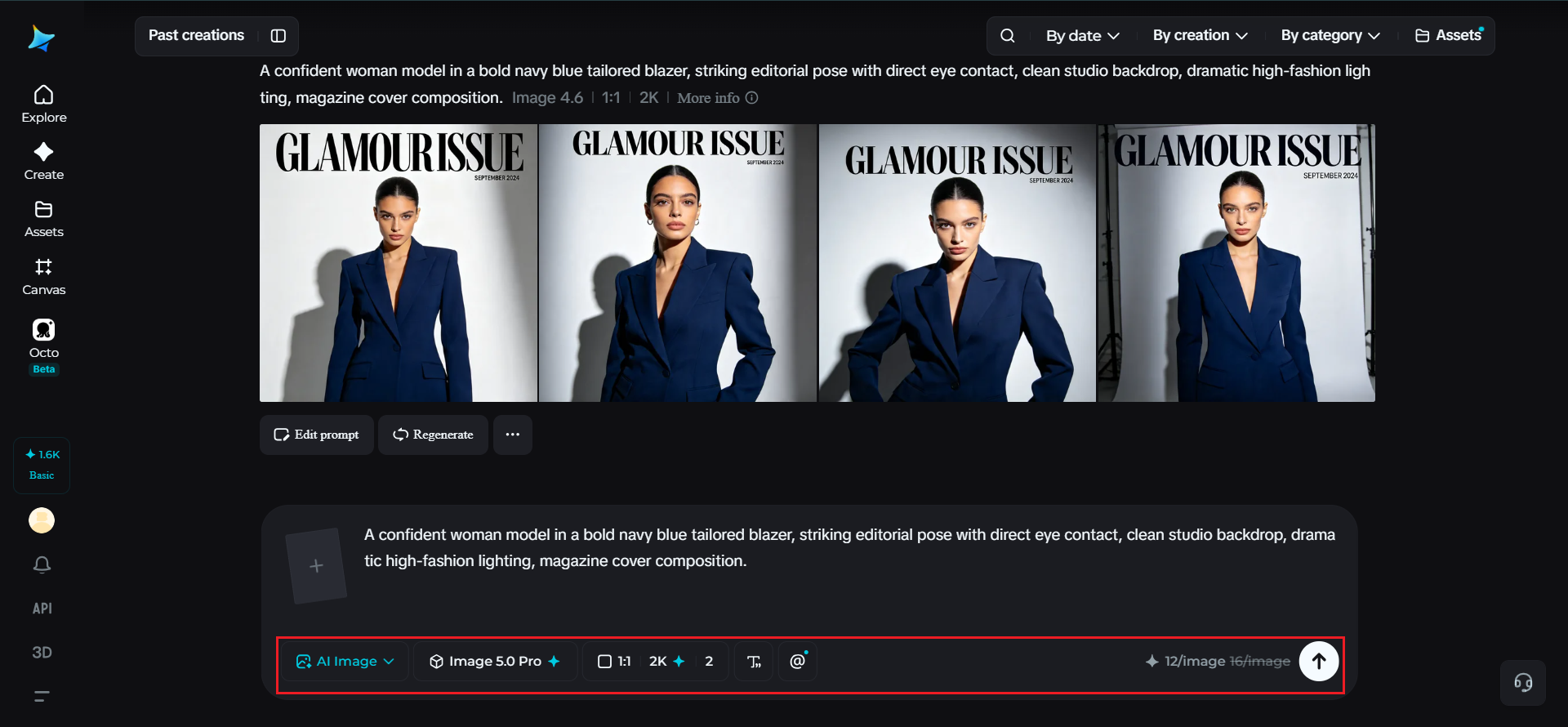
Before generating, set your parameters to match a real magazine format. Choose Image 5.0 Pro, powered by Seedream 5.0 Pro, as your model, then select your aspect ratio, image size, and resolution, using a tall portrait ratio to match standard magazine dimensions and 2K resolution for crisp detail if you plan to print or display it large. Click Dreamina’s generate icon to produce your cover image.
Step 3: Customize and download
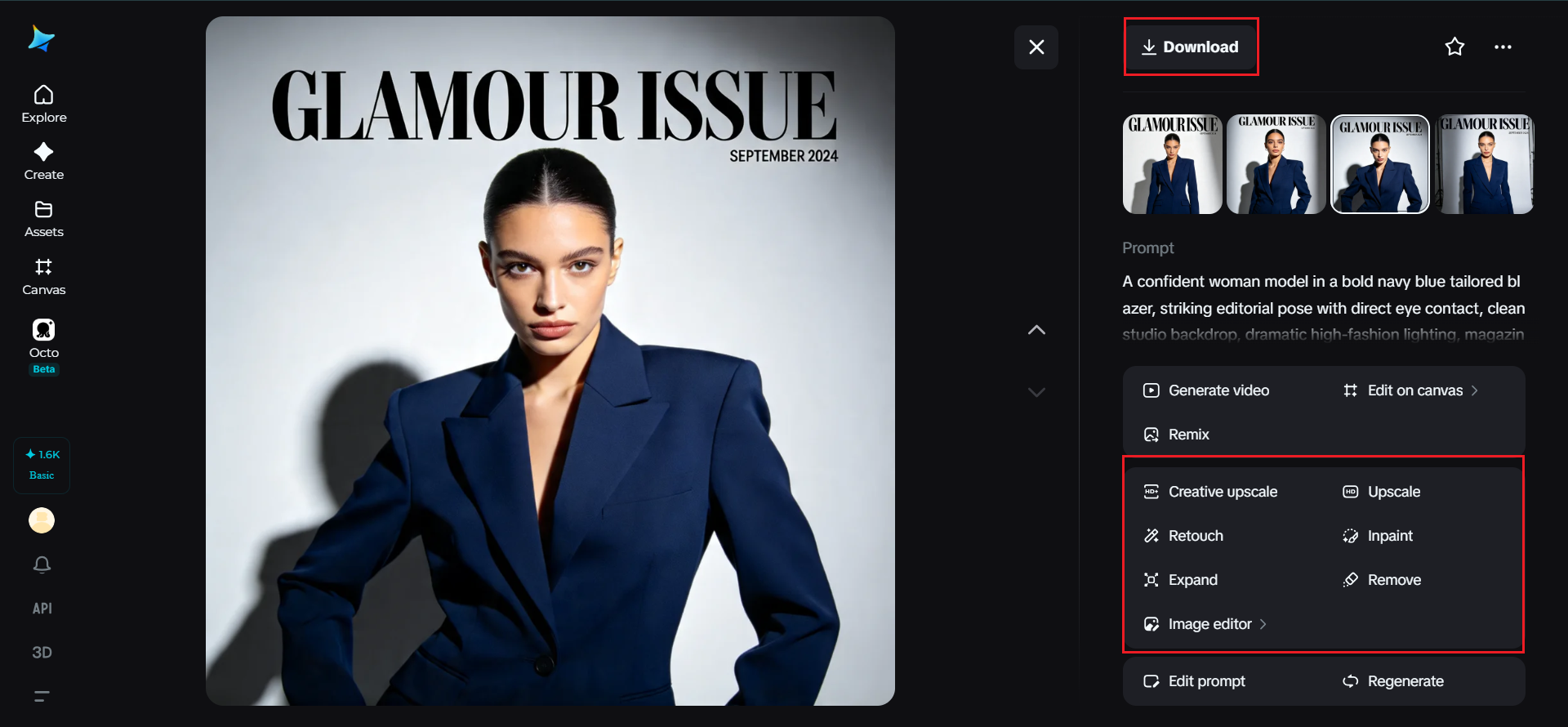
Once your image generates, refine it using Dreamina’s AI customization tools — inpaint to sharpen specific details like expression or styling, expand to open up more space for masthead and text, remove to clean up anything cluttering the composition, and retouch to boost overall contrast and polish. When it feels genuinely magazine-ready, click the Download icon to save your finished cover.
Choosing a genre and letting it shape everything
-
High-fashion editorial with dramatic lighting and bold styling
-
Lifestyle or wellness with softer, natural light and warmer tones
-
Business or tech with clean, sharp, minimal composition
-
Music or entertainment with bold color and high energy
Where the masthead and cover lines actually belong
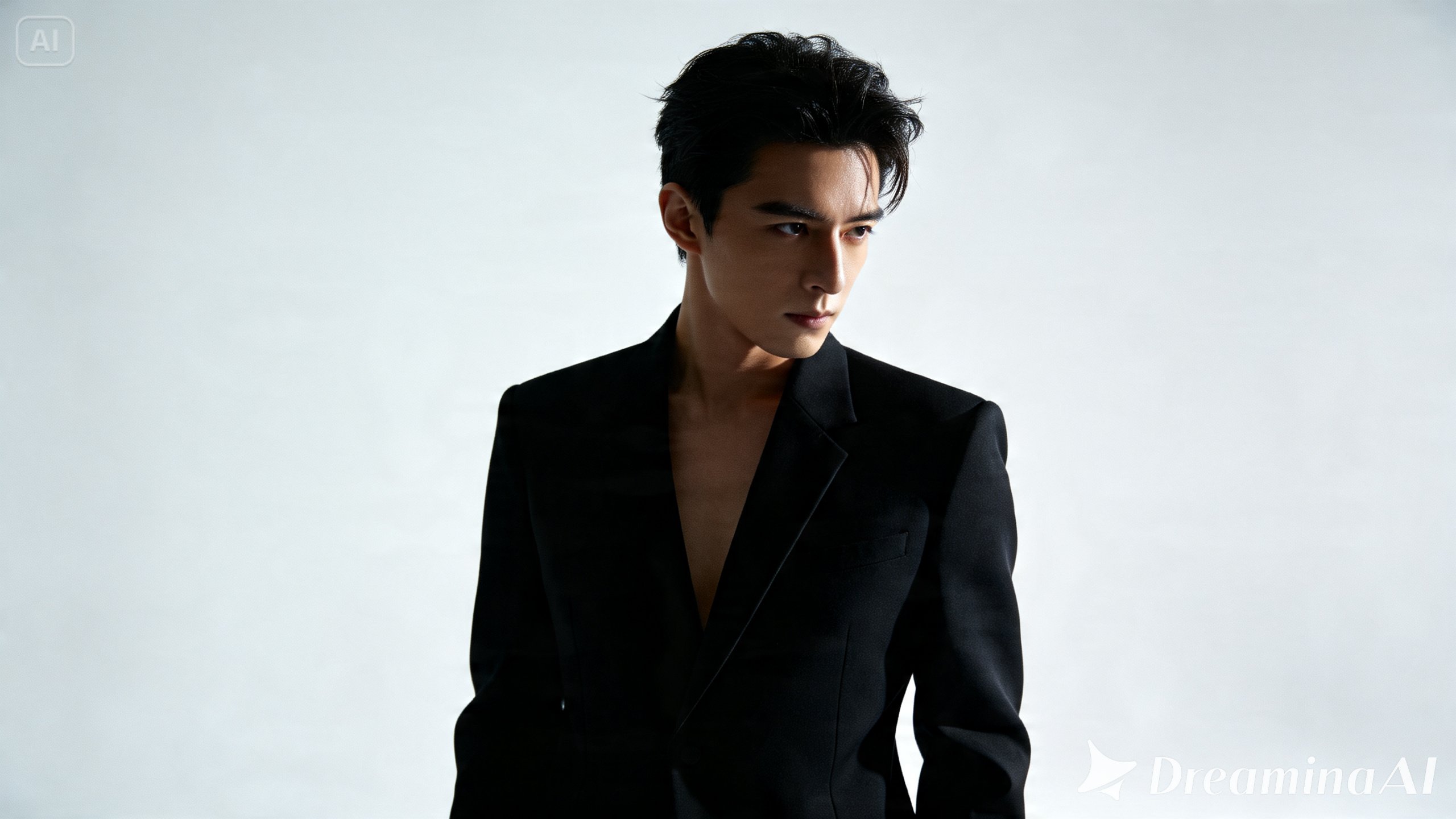
Lighting choices that scream “editorial”
A few finishing touches worth considering
-
A consistent color grade tying the whole image together
-
Subtle texture or grain for a more tactile, printed feel
-
Clean alignment if you’re planning to add text afterward
Final thoughts

| Android App | Join Facebook | Join Whatsapp | Join Telegram |